
Sync is not a backup.
Sync codes expire daily. This means writing down your phrase and trying to use it later to restore your data won’t work. Sync is designed to synchronize data between devices, not to back up your data. It was created to sync data between active devices, not as a long-term backup solution.
Sync codes expire daily to protect user data. In the past, people accidentally shared their QR codes or Sync phrases, which allowed unauthorized access to their data. to reduce these risks, Brave has made Sync codes expire regularly to reduce these risks.
Instead, use the export feature in the bookmarks and password manager.
Sync FAQ:
https://community.brave.com/t/helpful-info-faq-for-brave-users/464018/36?u=eslih
Recommended backup method
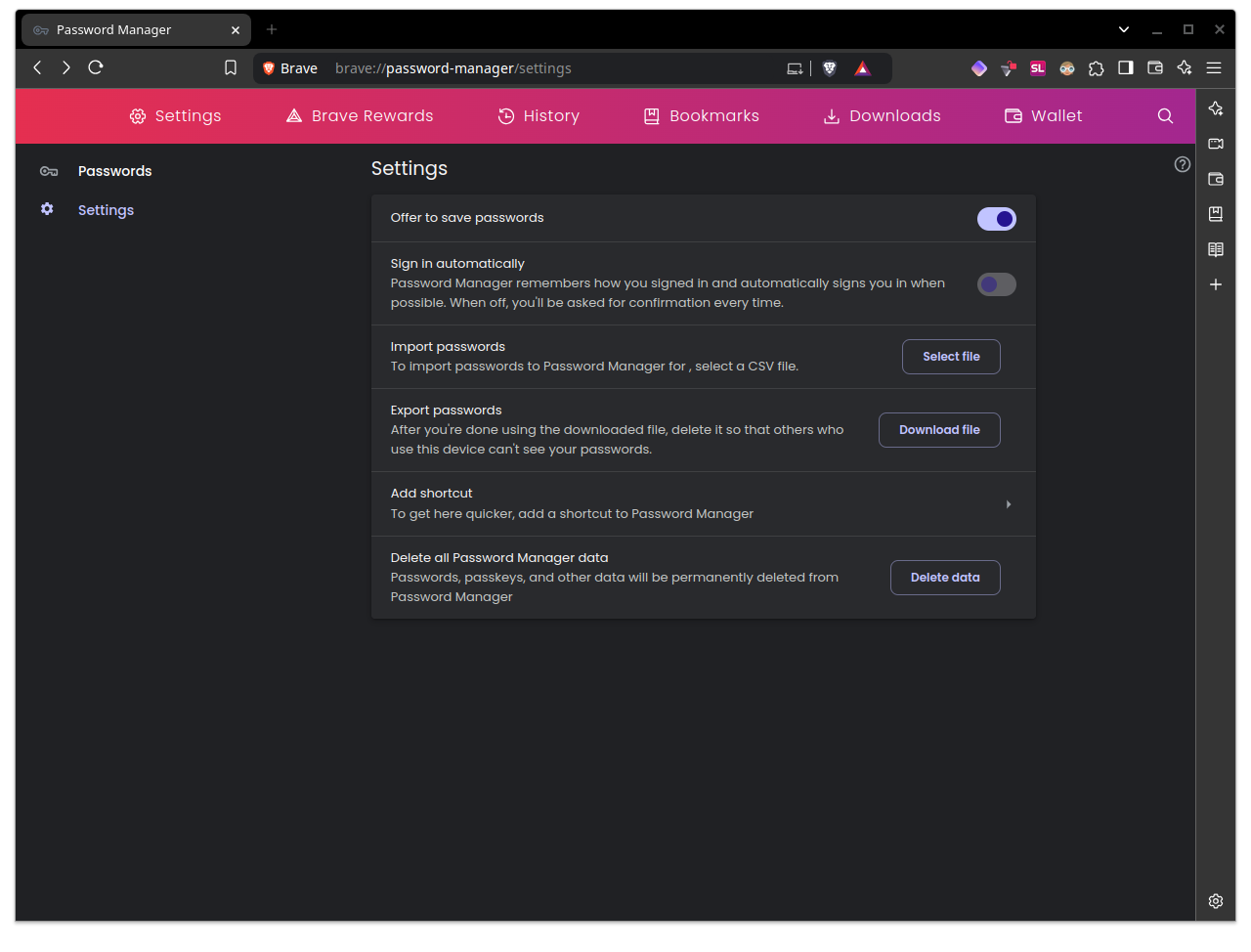
Exporting passwords
Go to brave://password-manager/settings and click on “Download file” in the export passwords option.
-
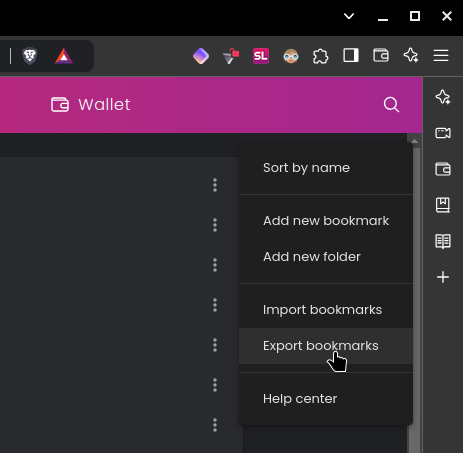
Exporting Bookmarks
Go to brave://bookmarks/, go to the kebab menu (the 3 dots in the top-right corner) and click Export Bookmarks.
-
Backing up Brave Wallet
If you use Brave Wallet and haven’t saved your recovery phrase, go to brave://wallet/crypto/backup-wallet, confirm with your password and get your phrase.
Restoring your data
To restore the 3 parts (bookmarks, passwords, and wallet), go to the same screens where the backups were made. Obviously, choosing the import/restore option this time.
https://community.brave.com/t/helpful-info-faq-for-brave-users/464018/34?u=eslih
Optional and additional backup (Advanced)
To back up more than just passwords, bookmarks, and your wallet (like extensions and settings), you can back up the user profile on your Desktop. However, this method is not officially recommended because it can cause issues, especially if there are version differences (restoring the backup in a newer version of Brave than the one where the folder was copied and saved).
Ensure that you have created the recommended backups for passwords, bookmarks, and your wallet.
Locate the path of your profile in the operating system:
Go to brave://version and find the line where it shows the “profile path”. Probably the eighth option:
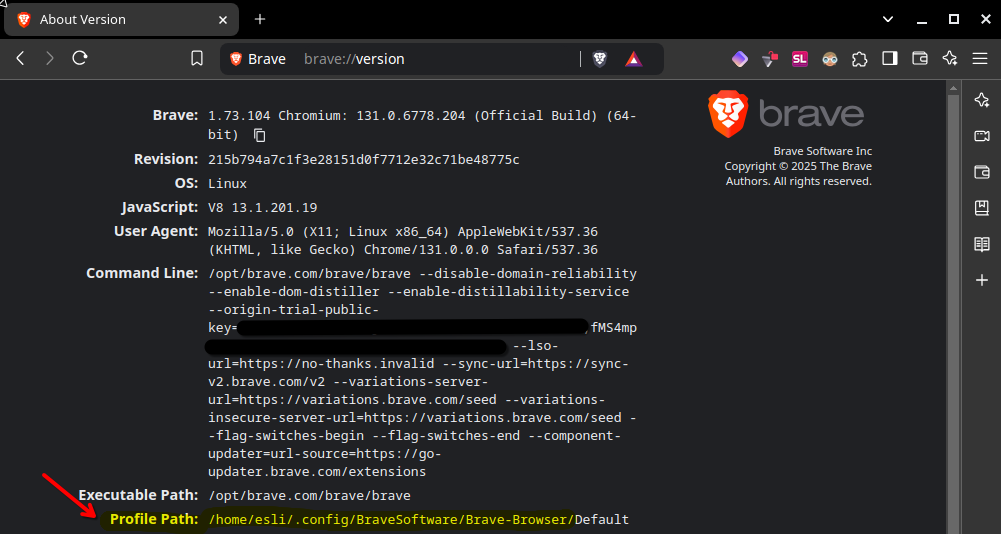
Back up the entire …/Brave-Browser folder
It’s best to compress it.
Restoring the profile
After installing Brave, find the profile folder and replace the new …/Brave-Browser folder with the one you backed up earlier.
If you’re restoring an older version backup, you might encounter issues with extensions, settings, and version compatibility.
If the new Brave installation is also part of a new operating system installation, make sure to check user permissions (chmod and chown).